
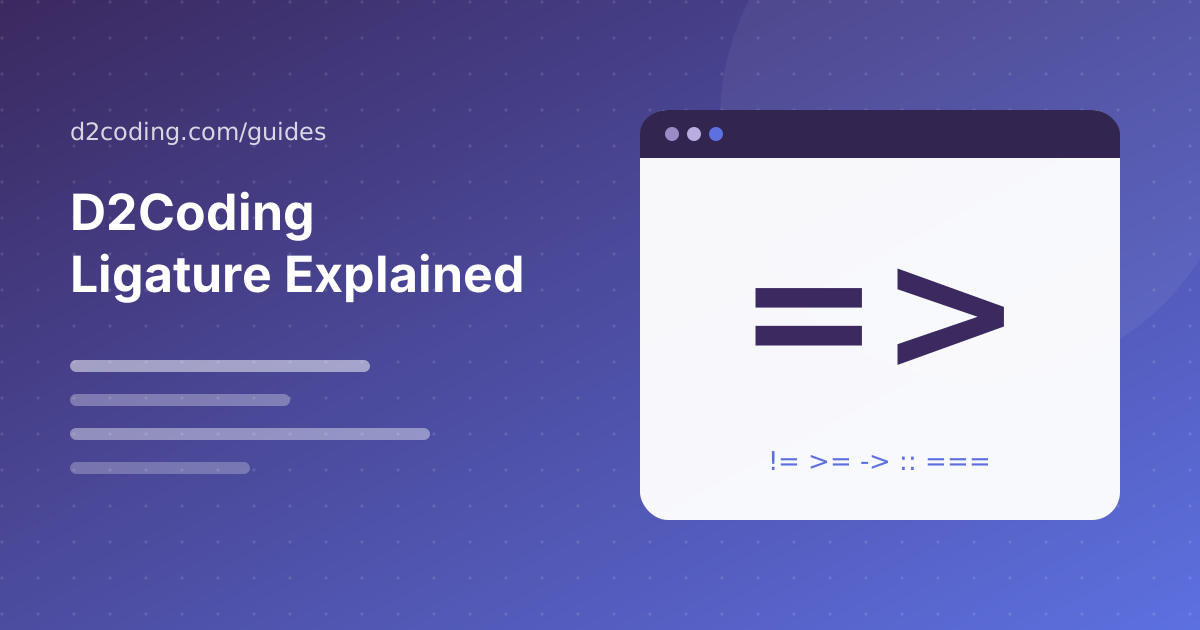
What a ligature is
D2Coding ligature fonts replace certain character pairs with a single combined drawing. When you type an equals sign followed by a greater-than sign, the editor shows a smooth arrow instead of two separate characters. The file still contains the two characters; only the display changes.
D2Coding ligature support was released as its own build so you can choose. NAVER ships D2Coding without ligatures and D2CodingLigature with them, which avoids surprises for people who prefer literal characters.
Which operators change
D2Coding ligature glyphs cover the operators programmers type most: arrows such as => and ->, comparisons like >=, <= and !=, equality checks such as == and ===, and a handful of others. The set is smaller than in fonts built around ligatures, which keeps the look restrained.
D2Coding keeps every ligature exactly as wide as the characters it replaces. That means columns stay aligned and your cursor still moves one character at a time through the joined shape.
Turning it on in VS Code
D2Coding ligature display in VS Code needs two settings. Set editor.fontFamily to D2CodingLigature first in the list, and set editor.fontLigatures to true. Save the settings file and the change applies immediately.
D2Coding users who see no change should confirm the ligature build is installed. The plain D2Coding family has no ligature tables, so the setting has nothing to display.
JetBrains IDEs and terminals
D2Coding ligature support in IntelliJ IDEA, PyCharm, WebStorm and other JetBrains tools lives under Settings → Editor → Font. Pick D2CodingLigature from the font list and tick Enable ligatures.
D2Coding ligature rendering in terminals depends on the terminal. Windows Terminal, iTerm2, Kitty and WezTerm can render them, while many older terminals ignore ligatures entirely and simply show the original characters.
Should you use them?
D2Coding ligature fonts make dense functional code and type annotations easier to scan for many people. Others find that joined symbols hide what was actually typed, especially when learning a language or reviewing tricky comparisons.
D2Coding without ligatures is often the better choice for teaching, live coding and screen sharing, because every character stays visible. Since both builds are free and can be installed side by side, try each for a week and keep the one that feels natural.
Understand what a programming ligature changes
A programming ligature changes the visual presentation of a character sequence. It does not replace the characters stored in your source file. If a compatible application displays an arrow-like shape for an operator, your compiler, version control system, and clipboard still work with the original text. This distinction matters when you discuss code with someone using another font: both people can have identical files while seeing slightly different shapes on their screens.
The D2Coding ligature build is therefore a display preference rather than a language feature. You do not need to modify your project to turn it on, and teammates do not need to install the same font to build your code. The practical question is whether the rendered shapes help you read your usual languages. Try real source files before choosing a setup based only on a promotional screenshot of a few operators.
Identify the correct installed family
Begin with the font preview supplied by your operating system. Look for the internal family associated with the ligature build and record that name. The filename can be different from the name an editor expects. A standard family and a ligature family may coexist, so an apparently successful installation can still leave the editor using the standard build. Select the intended family explicitly before changing any application feature flags.
When testing, avoid a long list of similar font names at the start of your fallback configuration. Request the intended family first and add only the generic fallback needed by your application. If the family is missing, a fallback can make the editor look reasonably normal while concealing that D2Coding was never selected. Compare a few distinctive characters and inspect the editor settings rather than assuming every monospaced appearance means the correct build is active.
Enable ligatures with a minimal VS Code setup
In VS Code, open the user settings and search for the editor font family and font ligatures settings. Select the installed ligature family and enable the ligature option. If you edit settings as JSON, keep the family value as a string and the basic ligature toggle as a boolean. Preserve any other settings already in the file, and check for syntax errors after editing. You do not need a separate extension merely to choose an installed editor font.
A workspace can define its own preferences, so check whether a project is overriding your user setting. Test in a new untitled file if you are unsure. Language-specific settings may also explain why one file behaves differently from another. Once the simple configuration works, return to the project where you first noticed the issue. This makes it easier to separate a font selection problem from a setting applied at a narrower scope.
Compare rendered operators with raw characters
Make a short sample containing equality checks, arrows, comparisons, and sequences of punctuation that occur in your language. Place a space between characters on a second line so you can compare the joined and separated forms. The exact sequences supported depend on the build and rendering environment. Do not expect every possible combination to join just because another programming font provides a symbol for it.
Move the cursor through the sample one character at a time. Select part of an operator and copy it into a plain text field. This shows that the underlying characters remain available even when the display joins them. It is a useful test for developers who worry that a ligature will silently replace source text. If cursor or selection behavior becomes distracting in your application, keep that observation in your decision rather than focusing only on appearance.
Choose a policy for teaching and code review
For tutorials, consider the experience of readers who are still learning syntax. A beginner may benefit from seeing the literal equals sign and greater-than character separately before learning the combined arrow form. You can use the standard D2Coding family while teaching and keep ligatures enabled in your personal editor. Document screenshots should make the intended characters clear, especially when the lesson explains how many symbols to type.
For team reviews, remember that screenshots preserve your rendering while code pasted into a discussion uses the viewer's environment. When an operator is central to a bug report, include a copyable text sample and explain the characters involved. This avoids confusion without requiring a team-wide font rule. A shared style guide can recommend readable screenshots while leaving each developer free to choose the D2Coding variant that feels clearest during daily work.
Keep terminal and document behavior separate
Your source editor and terminal are different rendering surfaces. An editor may support a ligature feature that the selected terminal does not expose, or the terminal may use a different family despite appearing inside the same application. Configure the terminal profile independently and test actual shell text there. Changing the editor preference alone does not prove that the terminal uses the same font file or typography settings.
Documents introduce another layer of variation. A word processor may apply its own typography options or substitute fonts when a document is opened elsewhere. If you use a coding font in Word, inspect the exported PDF and the editable document separately. For instructional code, literal punctuation can be more useful than joined shapes. Select a standard build when predictable character-by-character presentation matters more than matching your personal editor's appearance.
Troubleshoot one variable at a time
If no ligatures appear, confirm the installed family before reinstalling it. Next, check the application feature toggle and any workspace override. Then test a short operator sample without extra letter spacing or a complex theme. Restart the application after changing the installed font files. This order gives you evidence about the point of failure, rather than changing the font, theme, editor version, and extension set simultaneously.
If only some sequences join, compare the behavior with the build's documented features instead of assuming the installation is broken. If text looks cramped, adjust the overall font size or line height before adding letter spacing, which can affect shaping in some environments. Save the original setting values so you can revert a change quickly. A working baseline is especially useful when you move between a laptop display and an external monitor.
Evaluate D2Coding during ordinary work
Use the ligature build for a representative editing session rather than a five-second preview. Read a diff, scan a long condition, inspect a regular expression, and debug a line with repeated punctuation. Notice whether you recognize operators faster and whether unusual sequences become harder to distinguish. Include the standard family in the comparison so that your decision reflects the actual difference between the two D2Coding options.
Keep your preferred configuration small and understandable. Record the installed family and the application setting responsible for ligatures. Avoid adding elaborate feature strings unless you have a specific reason and know that your application supports them. A good setup should survive reopening the editor and be easy to explain to your future self. The best result is clear source text throughout your normal workflow, whether you ultimately keep joined operators enabled or choose separate characters.
Frequently asked questions
D2Coding ligature fonts only change how text looks; the saved file keeps the original characters.
D2Coding and D2CodingLigature have different family names, so both can be installed at the same time.
D2Coding ligature display needs an app that supports OpenType ligatures and has them switched on.
Conclusion
D2Coding ligature is an optional extra, not a requirement. Install D2CodingLigature, switch ligatures on in your editor, and see whether joined operators help you read. If not, the standard D2Coding build is just one setting away.